This is an article from the Silverlight software development series, helping to explore new opportunities of Silverlight development. This artucle deals with adding new interactivity to your Silverlight 3 application, without having to write code. It also covers the question of using a rich API to write your own behaviors for Silverlight and WPF projects.
Hello, today I would like to talk about some features of Silverlight 3, which in my opinion cannot be overlooked - it is Behaviors. Before proceeding to the practical application development I would like to speak a little about what is Behaviors and where they are used.
So what does Behavior mean?
Behavior - is a definite functional unit which can be added to some element of Silverlight, to increase its interactivity. To make it clear, I will show you the application of the standards of Behavior (MouseDragElementBehavior).
As we see from the example, MouseDragElementBehavior allows you to drag image, on the application area, thereby extending its functionality. This and many other Behaviors can be found in the installation Microsoft.Expression.Interactions. Apart from that, there is an additional possibility of adding our own Behavior in Silverlight 3, and this is what we are going to do in this article.
First you need to install the following elements:
- Download the Microsoft Silverlight 3 SDK.
- Download the Microsoft Expression Blend 3
Create your own Behavior
For example, let’s do Behavior for the TextBox, which is hiding its content with the Blur effect.
First – we need to create a project in Expression Blend 3. It also can be done in Visual Studio 2008.
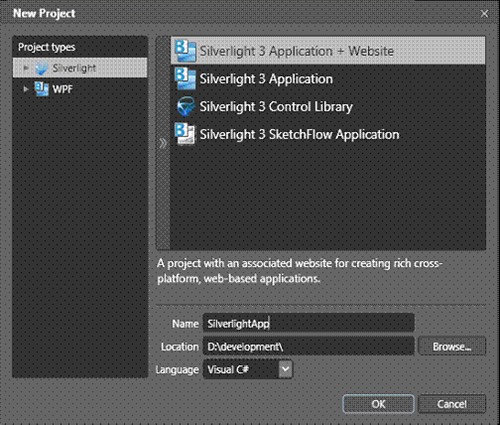
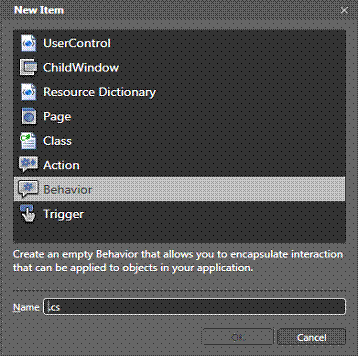
Then we need to add the Behavior class to the project. To do it, we need to go to the menu File -> New item ... and choose one of the Behaviors in the displayed list.
Class Behavior provides the virtual methods OnAttached and OnDetaching.
These methods are made for the events registration and removal. In the method OnAttached we will sign the event GotFocus and LostFocus and in the method OnDetaching respectively we will delete them.
public class FocusBehavior : Behavior<TextBox>
{
public BlurEffect BlurEffect { get; set; }

public FocusBehavior()
{
BlurEffect = new BlurEffect();
}

protected override void OnAttached()
{
base.OnAttached();
if (AssociatedObject == null) return;

AssociatedObject.Effect = BlurEffect;

AssociatedObject.LostFocus += LostFocus;
AssociatedObject.GotFocus += GotFocus;
}

protected override void  OnDetaching()
{
base.OnDetaching();
if (AssociatedObject == null) return;

AssociatedObject.LostFocus -= LostFocus;
AssociatedObject.GotFocus -= GotFocus;
}

private void LostFocus(object sender, RoutedEventArgs e)
{
AssociatedObject.Effect = BlurEffect;
}

private void GotFocus(object sender, RoutedEventArgs e)
{
AssociatedObject.Effect = null;
}
}
That's what we eventually got. In my opinion, there's no need to explain anything, from the code we have I believe everything is clear. Well, now it’s easier, we need to throw on form several TextBox and add Behavior to them. Look what happened.
Well, that’s basically all for this article. I hope my example is of some help to those who are also excited at Silverlight and its possibilities.
An example can be downloaded here.
Denis K., .NET team, Binary Studio